Adjusting Inventory: Returns, Trash & Disposal
When items are received into your warehouse, they are recorded against a Purchase Order for full traceability. Sometimes received stock needs to be corrected. because goods are damaged, expired, or must go back to the vendor. Rexolia provides three adjustment actions to handle this.
Depending on your country of operation, every stock adjustment is automatically reported to your local tax authority (e.g. RRA in Rwanda, ANAF in Romania). Make sure adjustments are accurate before confirming.
Where to Start
All three adjustment actions are accessed from the same place:
Operations Hub (left icon menu) → Inventory Levels
Use the search bar to find the reception line for the product you want to adjust. A product may have been received multiple times, make sure you select the correct delivery line before proceeding.
1. Return to Vendor
Use Return when goods need to go back to the supplier.
- Go to Operations Hub from left icon menu → Inventory Levels, locate the reception line and click Return under the Update Inventory column.
- You will see the full Purchase Order associated with that delivery.
- Locate the line with the product you are returning if the order has multiple products then enter the quantity to return per line item.
- Click on the cargo icon next to the entered number. The returned quantity is immediately deducted from your stock.
Return is done per item line on the Purchase Order.

2. Trash
Use Trash when goods are damaged or unusable but do not go back to the vendor.
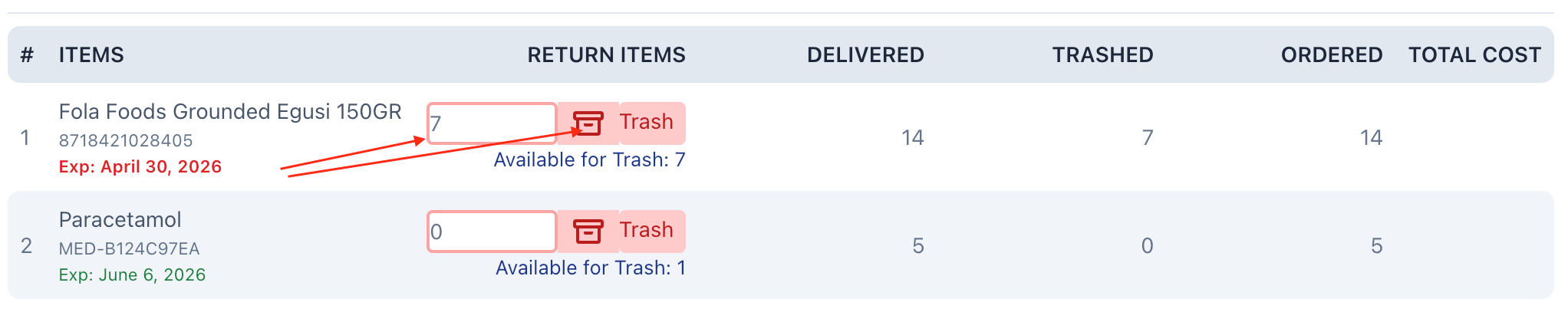
- Go to Operations Hub from left icon menu → Inventory Levels, locate the reception line and click Trash under the Update Inventory column.
- You will see the full Purchase Order associated with that delivery.
- Locate the line with the product you are trashing if the order has multiple products then enter the quantity to the quantity to trash per line item.
- Confirm by clicking on trash icon. The quantity is deducted from your stock.
Trash is done per item line on the Purchase Order.
3. Dispose Off
Use Dispose Off for items that are not linked to a Purchase Order (e.g. opening stock entries or manually added items).
- Go to Operations Hub from left icon menu → Inventory Levels, locate the item line and click Dispose Off under the Update Inventory column.
- Enter the Quantity to Dispose and a Reason.
- Click Confirm & Dispose Off. The quantity is deducted from your stock.
Summary
| Action | Linked to PO? | Use Case |
|---|---|---|
| Return | Yes | Send goods back to vendor |
| Trash | Yes | Discard damaged/unusable goods from a received order |
| Dispose Off | No | Discard items not tied to a purchase order |