Important Initial setups
This guide walks you through configuring your Business for multi currency and taxes.
1. Updating Business data
Go to Setting menu at the left navigation menu
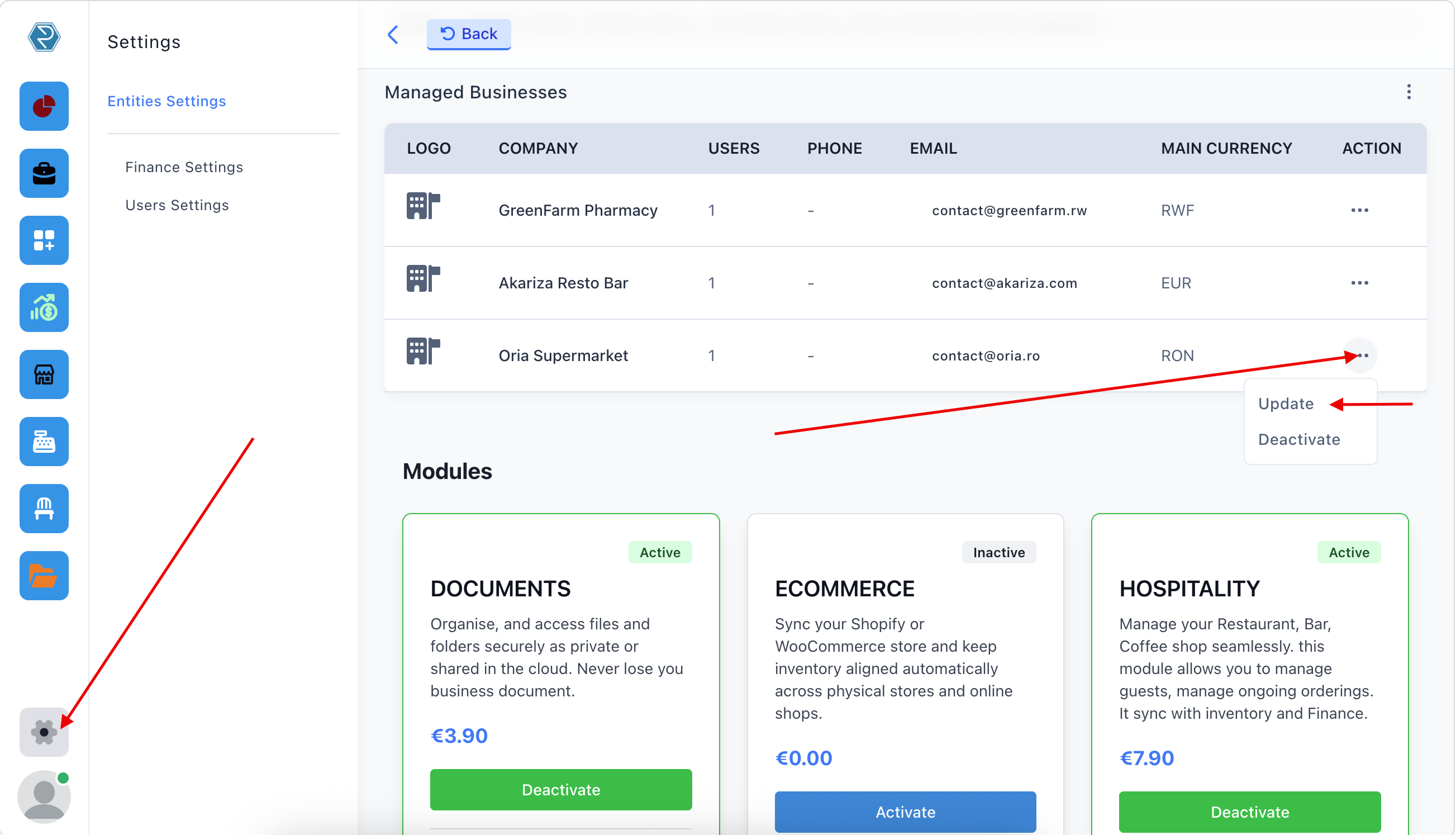
You will be presented with a form to update your Business information. Make the desired changes and then click Save Updates
2. Multiple currencies
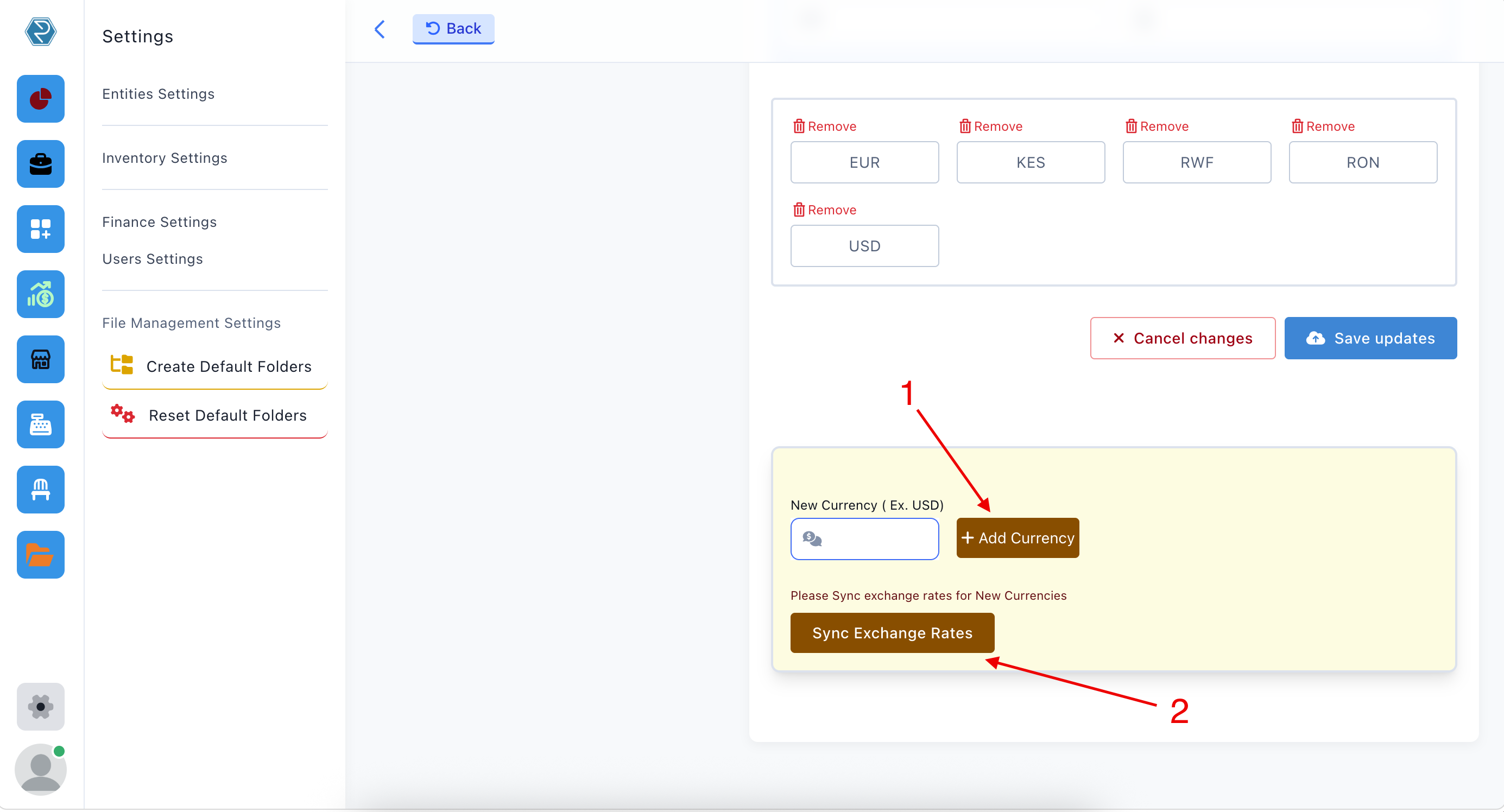
If your business transactions involve multiple currencies. Add these currencies At the bottom of update entity form.
- Enter Currency
- Sync Exchange rate for the system to acknowledge the value of the currency.
Business reports issued in Inventory and in Finance modules will will be in your defined Reporting Currency. The exchange rate will be according to European Central Bank
3. Set default Journal and Taxes
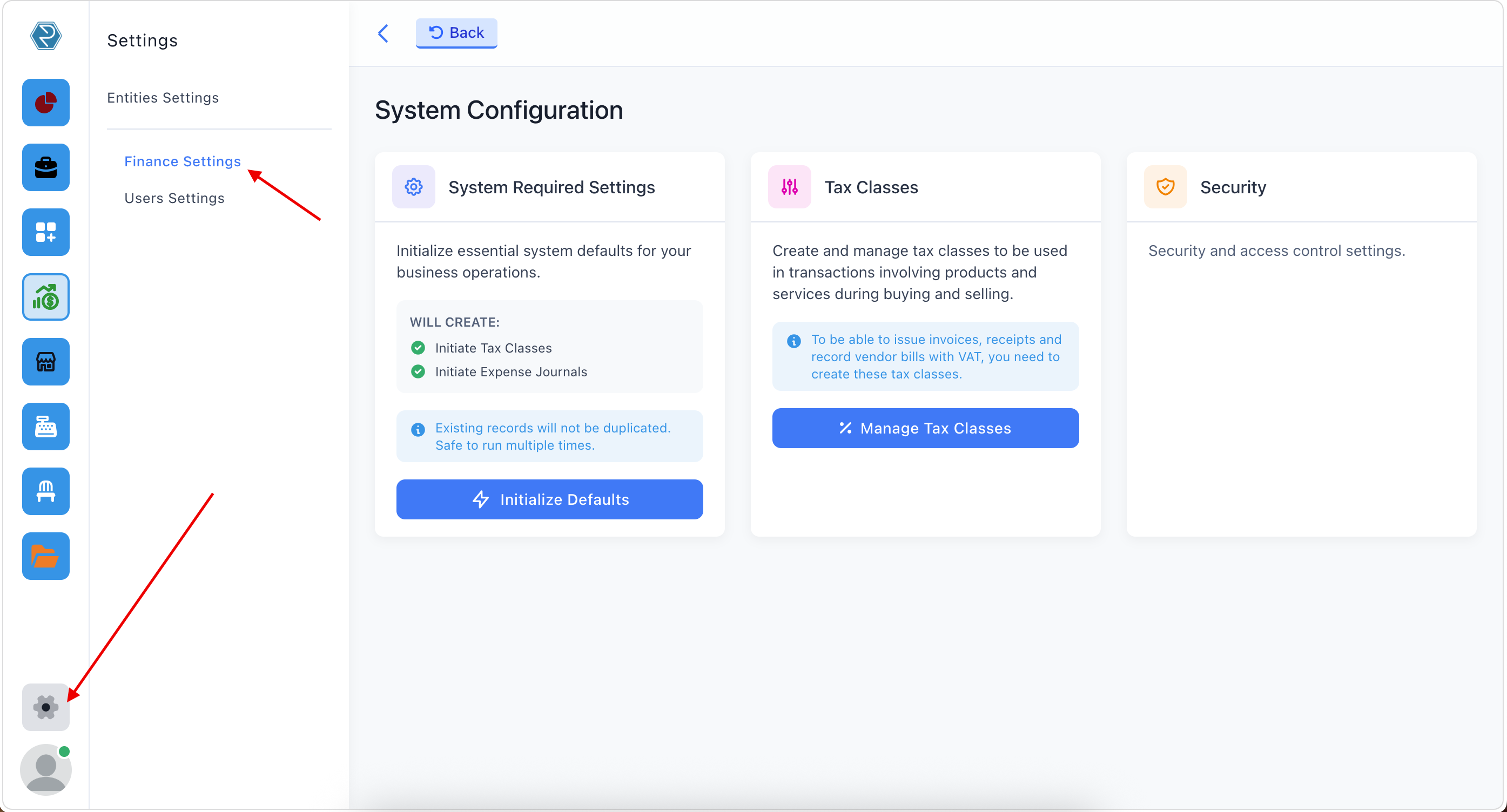
Go to Settings in the left navigation menu then Finance Settings. You will be presented with System Configuration.
Click Initialize Defaults button to set default journals and Tax. This action will generate a Tax of 0% that you need in order to sell non taxed products and service. It will also generate 4 Journals you need to categories business transaction. You can add more journals from Finance module later. This initialization does not affect any existing data even if you do it multiple times.
4. Taxes Setup (RRA Compliance)
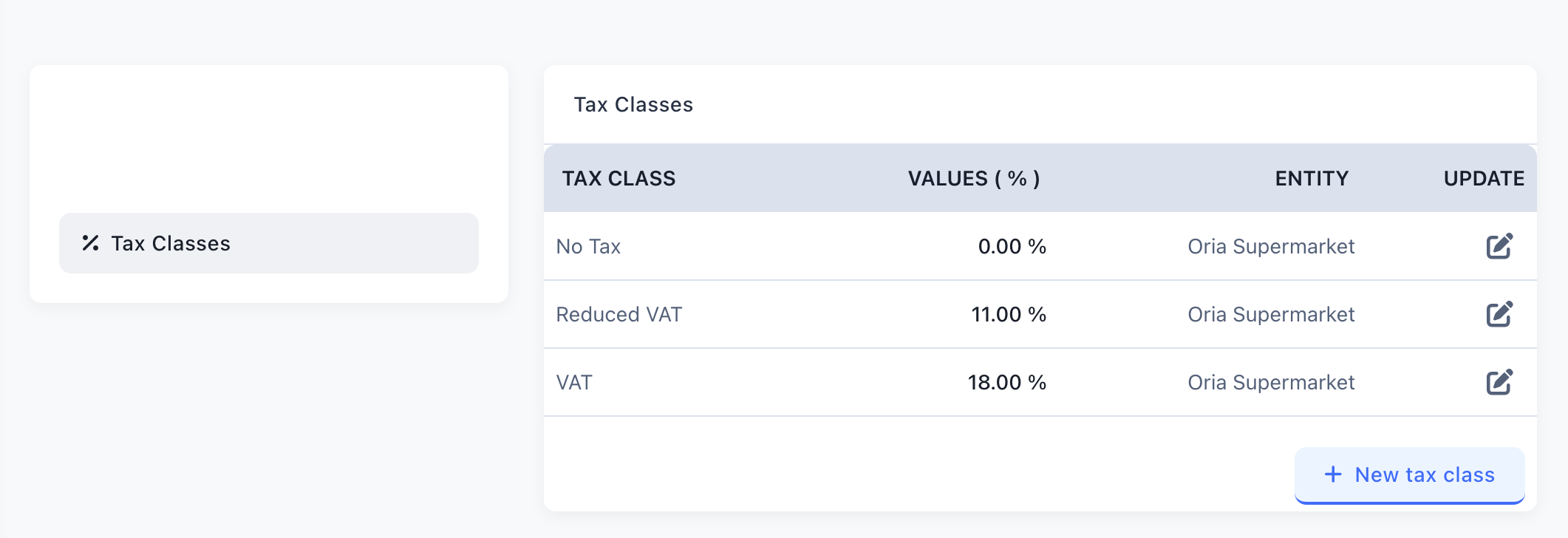
Rexolia supports the tax rate structure required by RRA labeled: A, B, C, and D.
Default Tax Configuration
When you click Initialize Defaults, Rexolia automatically creates:
- A 0% tax rate (for exempt products and services)
- Four tax rate categories (A, B, C, D) as required by RRA
Managing Tax Classes
To configure tax rates:
- Go to Settings → Finance Settings
- Click % Manage Tax Classes
- For each tax rate category (A-D):
- Enter the tax rate percentage (0-100)
- Select the appropriate tax type
- Click Save Changes
RRA Tax Rate Requirements
| Tax Label | Description |
|---|---|
| A | Tax rate 1 (typically 0% for exempt items) |
| B | Tax rate 2 (typically standard VAT rate) |
| C | Tax rate 3 (typically reduced rate) |
| D | Tax rate 4 (typically special rate) |
Important Compliance Note: Rexolia will print all configured tax rates (with values > 0) on every receipt, even if they are not applied to the specific sale. Tax rates with 0% value are only printed when they are actually used.